How to Make a Budget in Google Sheets, Step by Step | Efficiency Sheets
How to Make a Budget in Google Sheets, Step by Step
Build a monthly budget in Google Sheets in about 30 minutes: the layout, the formulas, and the weekly habit that makes it stick.
Efficiency Sheets ·
A budget is a plan for your next paycheck. Google Sheets is a good place to keep it: it's free, it works on your phone, and your numbers stay in your own Google Drive instead of a budgeting app's servers.
This guide walks through building one from a blank sheet. Set aside about 30 minutes for the first month. After that it's about 10 minutes a week.
What you need
A Google account (Google Sheets is free with it)
Your take-home pay for the month
Last month's bank and credit card statements
A list of bills you pay once or twice a year, like car registration or insurance
Step 1: Lay out the sheet
Open a new sheet at sheets.new and name the tab after the month, for example "January".
Make five sections going down the page, each with the same four columns:
Category
Budget
Actual
Difference
Rent
1,400
1,400
0
Groceries
450
512
-62
The five sections are Income, Bills, Expenses, Savings and Debt. Keeping savings and debt as their own sections means they get planned like a bill instead of being whatever is left over.
Step 2: List your income
Questions
Is Google Sheets free?
Yes. Google Sheets is free with any Google account and works in a web browser and in the Google Sheets app on iPhone and Android.
Do I need to connect my bank account?
No. You type in your own numbers. That keeps your bank login out of third-party apps, and it makes you look at every number, which is a big part of why tracking works.
How often should I update my budget?
Once a week is the sweet spot. It takes about ten minutes, and you catch overspending while there's still time in the month to fix it.
What if my income is different every month?
Budget from your lowest month in the last three to six months. When you earn more, put the extra toward savings or debt.
Write down your take-home pay: what actually lands in your account after taxes and deductions. Budgeting from your gross salary is the most common reason a budget looks fine on paper and fails in real life.
If your income changes month to month, look at the last three to six months and budget from the lowest one. A good month then becomes extra savings instead of a surprise.
Step 3: List your fixed bills
Go through last month's statements and pull out everything that costs about the same every month: rent or mortgage, utilities, phone, internet, insurance, car payment and subscriptions.
For bills you pay once a year, divide the yearly cost by 12 and add it as a monthly line. A $600 car insurance renewal becomes $50 a month you set aside, so the renewal never wrecks a month.
Step 4: Estimate your variable spending
Variable spending is the part that changes: groceries, gas, eating out, shopping, personal care. Add up each category from your last two or three months of statements and use the average as your budget.
Be honest here. A grocery budget you can't hit doesn't help. You'll tighten it later once you can see where the money goes.
Step 5: Give savings and debt a line each
Add a row for each savings goal (emergency fund, retirement, a trip) and each debt payment. Put an amount next to every one, even if it's small. Treating savings as a line item is what people mean by "pay yourself first".
Step 6: Add the formulas
Three formulas do almost all the work.
Section totals. Under each section, add up the Budget and Actual columns. If your bills are in rows 8 to 15:
=SUM(B8:B15)
Difference. In the Difference column, subtract what you spent from what you planned. A negative number means you went over:
=B8-C8
Left to spend. At the top of the sheet, take income and subtract everything else. If your income total is in B6 and the other section totals are in B16, B26, B32 and B38:
=B6-(B16+B26+B32+B38)
Here's what that looks like for a $4,200 take-home month:
Section
Budget
Income
4,200
Bills
1,850
Expenses
1,150
Savings
600
Debt
400
Left to spend
200
If Left to spend comes out negative, the plan doesn't fit your income yet. Trim expenses or savings until it's zero or a little above.
Step 7: Make overspending turn red
Select the Actual column, then go to Format → Conditional formatting. Choose Custom formula is and enter:
=C8>B8
Pick a red fill. Any category where you spent more than you planned now stands out at a glance.
Step 8: Update it once a week
This is the step that decides whether a budget works. Pick one day, open your banking app, and type the week's spending into the Actual column. It takes about ten minutes. Waiting until the end of the month turns it into an hour of guessing.
Step 9: Start next month from this one
At the end of the month, right-click the tab and choose Duplicate. Rename it, clear the Actual column, and adjust any budget that was clearly wrong. Most budgets take two or three months to settle.
Common mistakes
Budgeting from gross pay. Use what lands in your account.
Forgetting yearly costs. Gifts, renewals and car repairs are predictable. Divide them by 12.
Making every category too tight. A plan you break by the 10th gets abandoned. Leave some room.
Only planning, never tracking. The Actual column is where you learn something.
Skip the setup
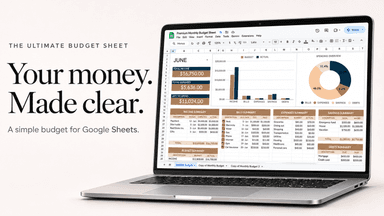
If you'd rather start with all of this already built, The Ultimate Budget Sheet has the sections, formulas and charts done for you. You type in income, bills, expenses, savings and debts, and it totals everything, shows Left to Spend, compares budget to actual and charts where the money went. It's a one-time purchase and works in Google Sheets, with Excel versions included.